Installation
Installation / Upgrade to ExSO 1.0.4
It’s best to create a dedicated virtual environment to install and launch exso.
Auto-Mode
Recommended for users:
with zero to little programming skills,
that are not familiar with virtual environments,
that want to make a quick and effortless review of the tool.
Process
Download ExSO.xlsm
- Follow the instructions contained inside. All it takes is two or three clicks
Hit the “Download Python” button and follow the instructions of the python installer
Hit the “Install ExSO” button.
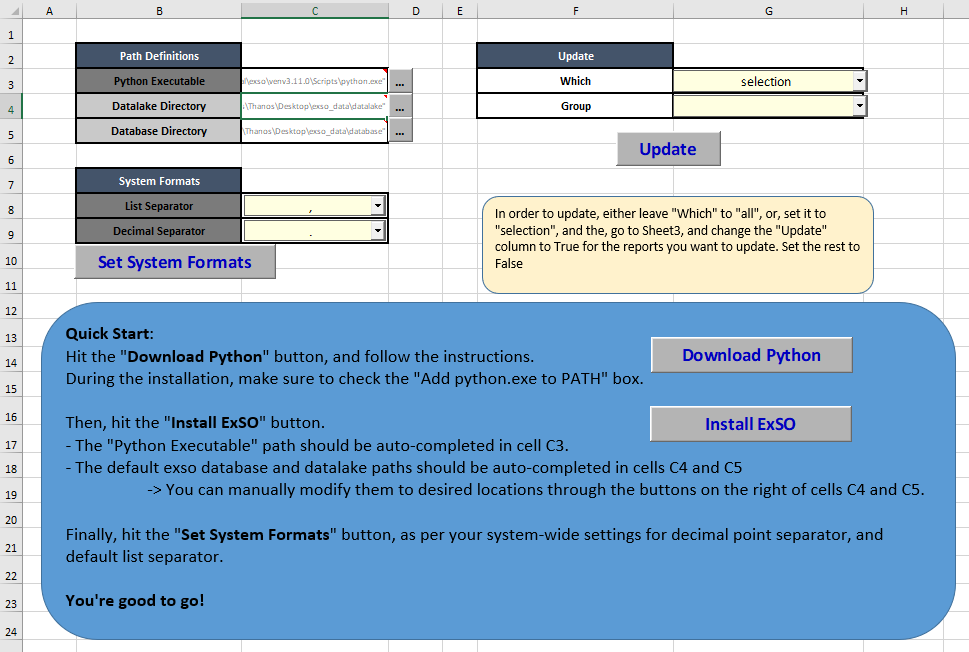
ExSO.xlsm user interface
You can then continue using ExSO through
 , which provides an excel-based GUI for the exso API basic functionality
Or, use the automatically created virtual environment through your preferred IDE, to directly use the exso API through the command line or an IDE.
Manual-Mode
Install Python >= 3.10
Create a new virtual environment (Or, use an existing one if you know what you’re doing)
Install exso in this virtual environment:
>>> (venv) pip install exso
Important
- ExSO comes with default formats:
List separator: ‘,’
Decimal point: ‘.’
- If your system formats are different, declare it before starting using ExSO:
Through ExSO.xlsm (one click)
Through the Command-Line or the exso API (see Core Concepts and API section)
Migration to ExSo 1.0.4
The Migration is as simple as the first-time installation.
In case of a pre-existing database created with previous versions of ExSO, a newer version of ExSO may automatically delete (actually relocate to a local backup that will be previewed during execution) and rebuild some of the database files to ensure the smooth data migration.